If you get stuck, drop us an e-mail, well do all we can to help. These pages are dedicated to Ros and Derek Goodman who kindly said this:
"I can't thank you enough for your help, patience and excellent customer service this evening."
______________________
Ros Goodman
17-Dec-2009
"I can't thank you enough for your help, patience and excellent customer service this evening."
______________________
Ros Goodman
17-Dec-2009
Downloading AudioFuel and installing music on your PC
This step by step guide is based on the Windows XP operating system and describes the process of downloading, unzipping and installing a compilation to iTunes.
1. Downloading
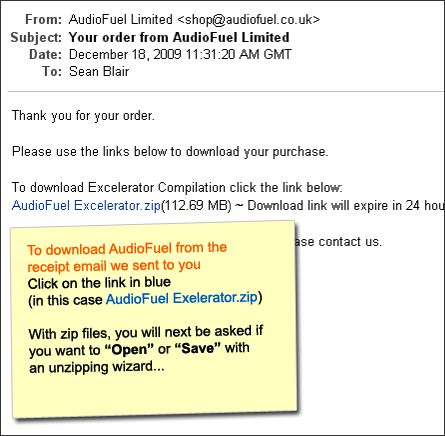
Click on the download link(s) on either the AudioFuel Downloads page or in the email we just sent to you. (example below shows email)
Click on the download link(s) on either the AudioFuel Downloads page or in the email we just sent to you. (example below shows email)
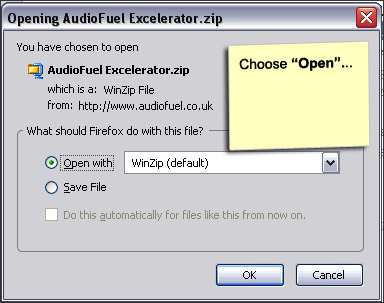
With zip files, windows will ask what to do next, choose "open"...
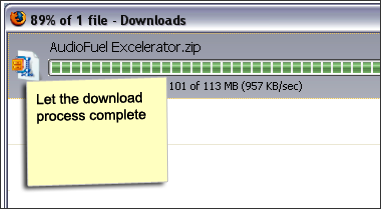
... then let the download complete
Unzipping Compilations. (Long Runs and Tracks are sent as uncompressed single MP3 files and do not require these steps)
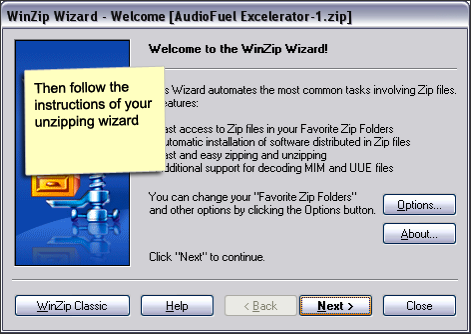
2. To add your AudioFuel to iTunes
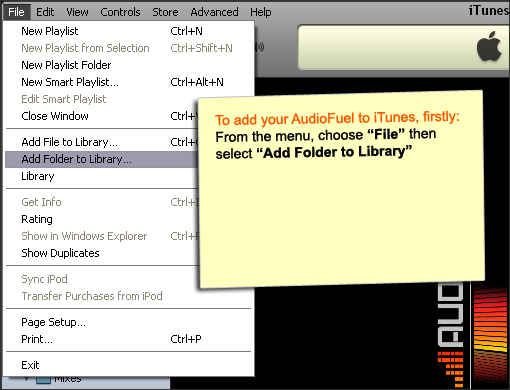
Open iTunes, then choose "File" then "Add to Library"...
Open iTunes, then choose "File" then "Add to Library"...
... navigate to your download folder and press OK
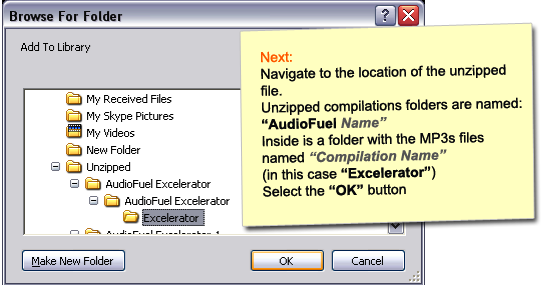
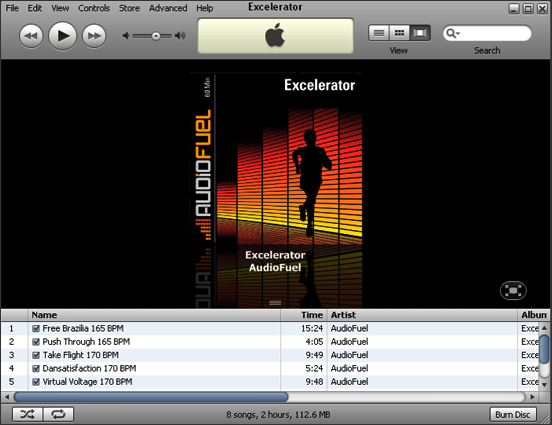
You should then find your music in your iTunes Library